Frequently Asked Questions
Find quick answers about registration, lessons, tutorials, and student access.
-
Accessing the system as a Committee member (Web App) expand_more
- Right Click/Double click on any of the browsers listed above
- Type the address www.drivetestgh.com/admin/login
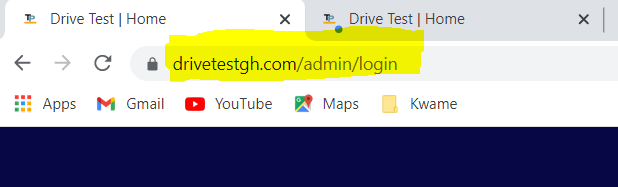
- Enter your log in and password which will be provided
- The side menu has Category, Topic, Note
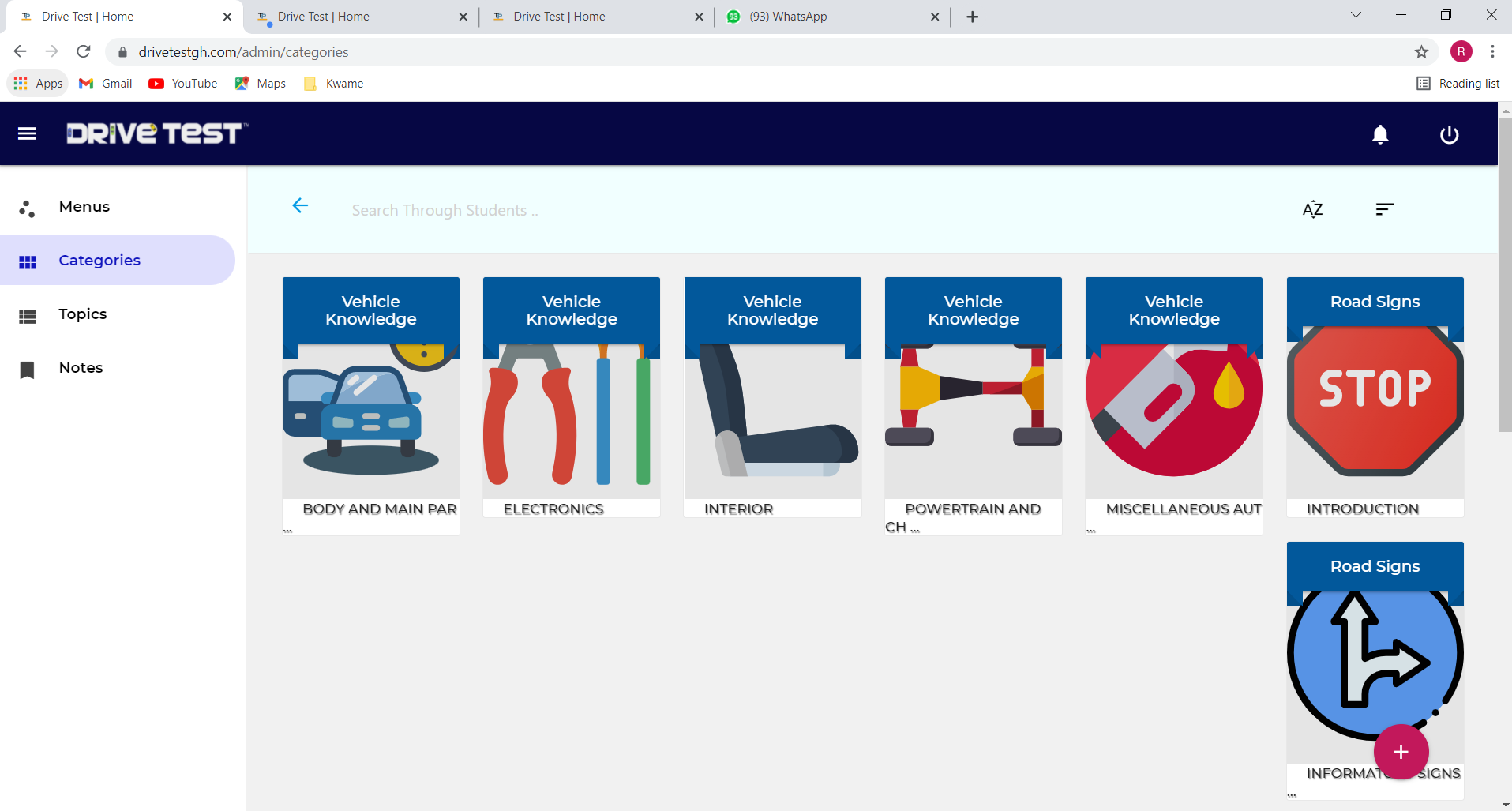
- Click on the red + sign to add a Category
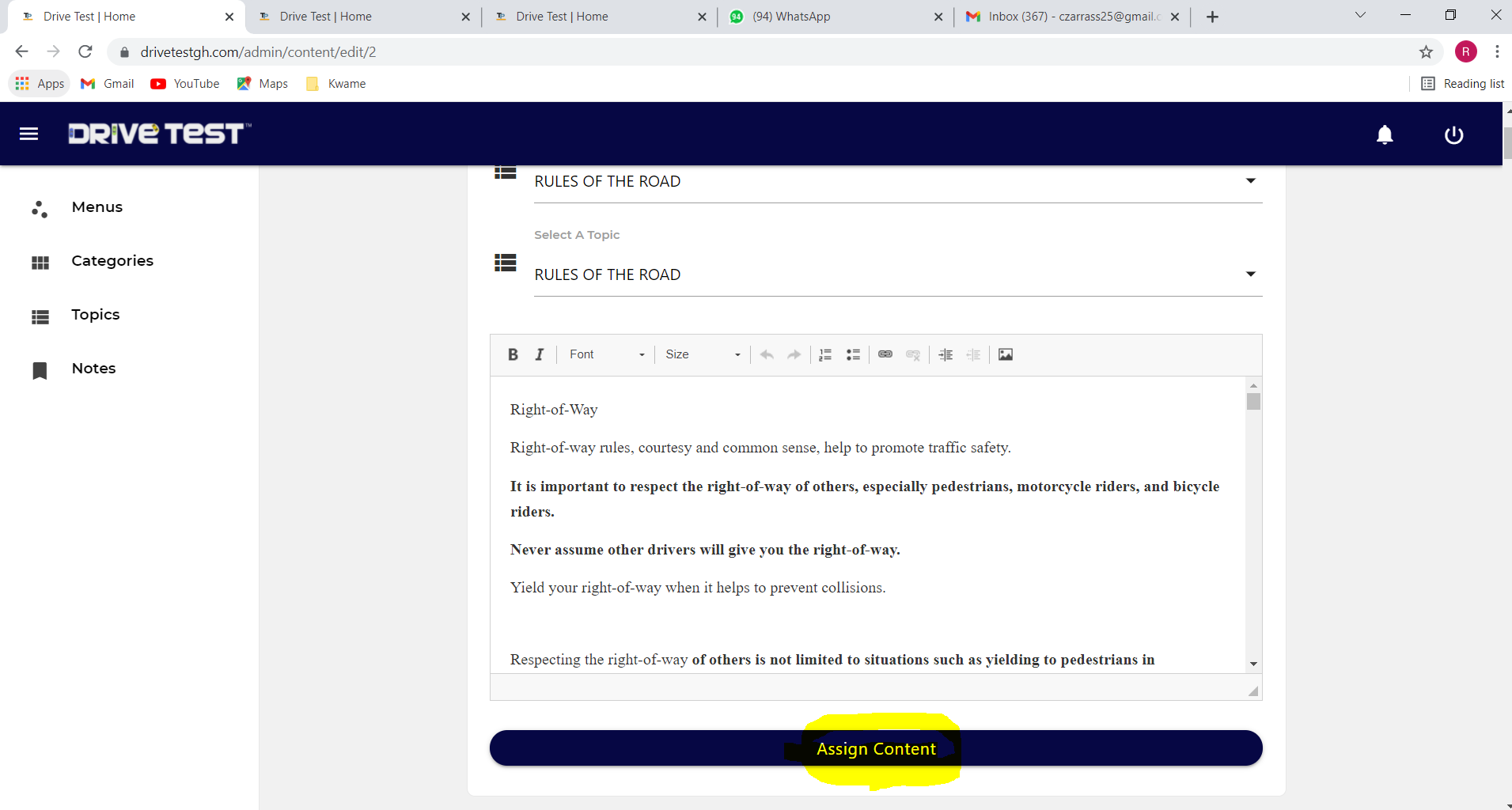
- To edit Notes, click on Notes
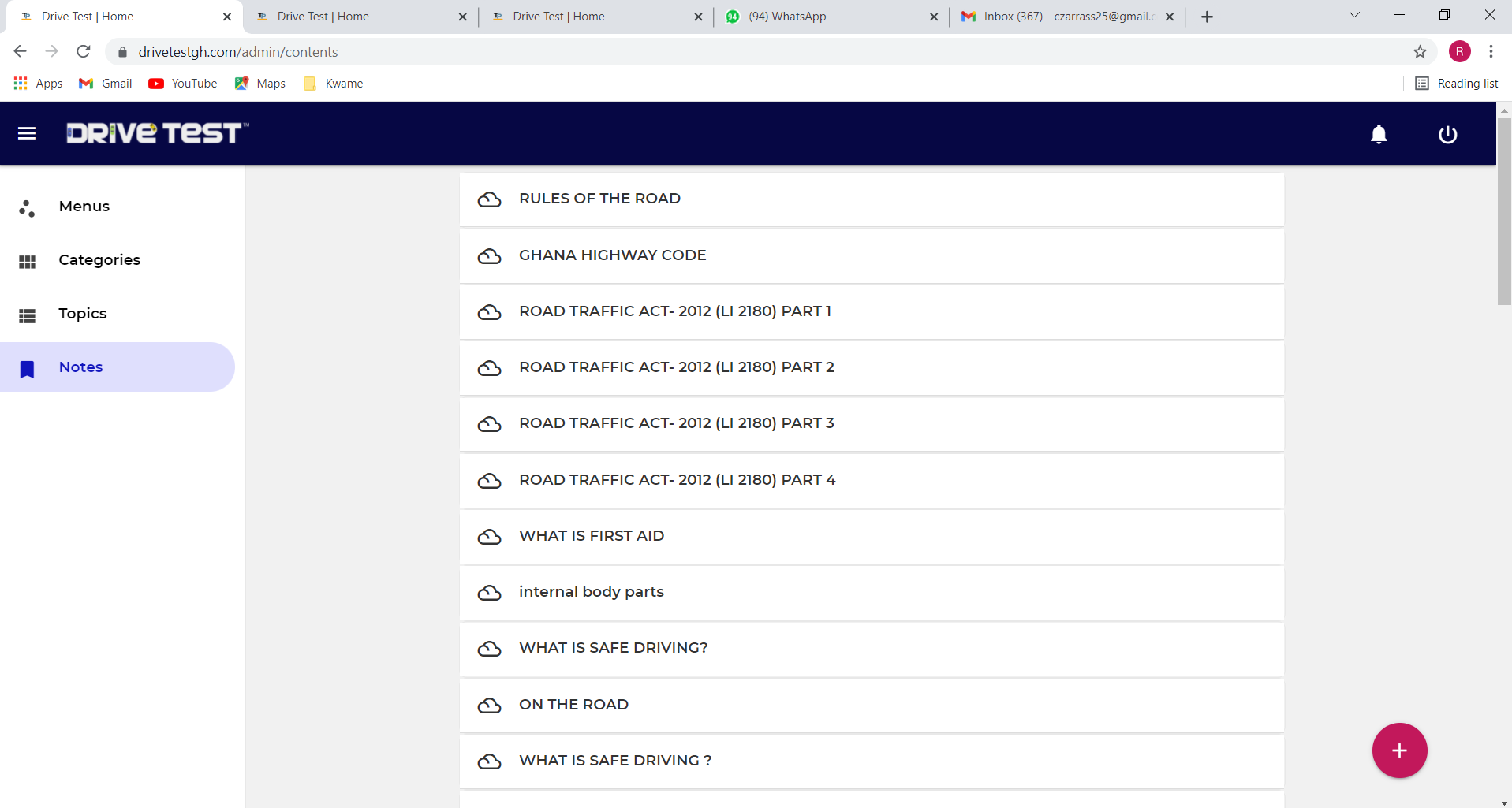
- Click on any of the notes, scroll down and click on edit.
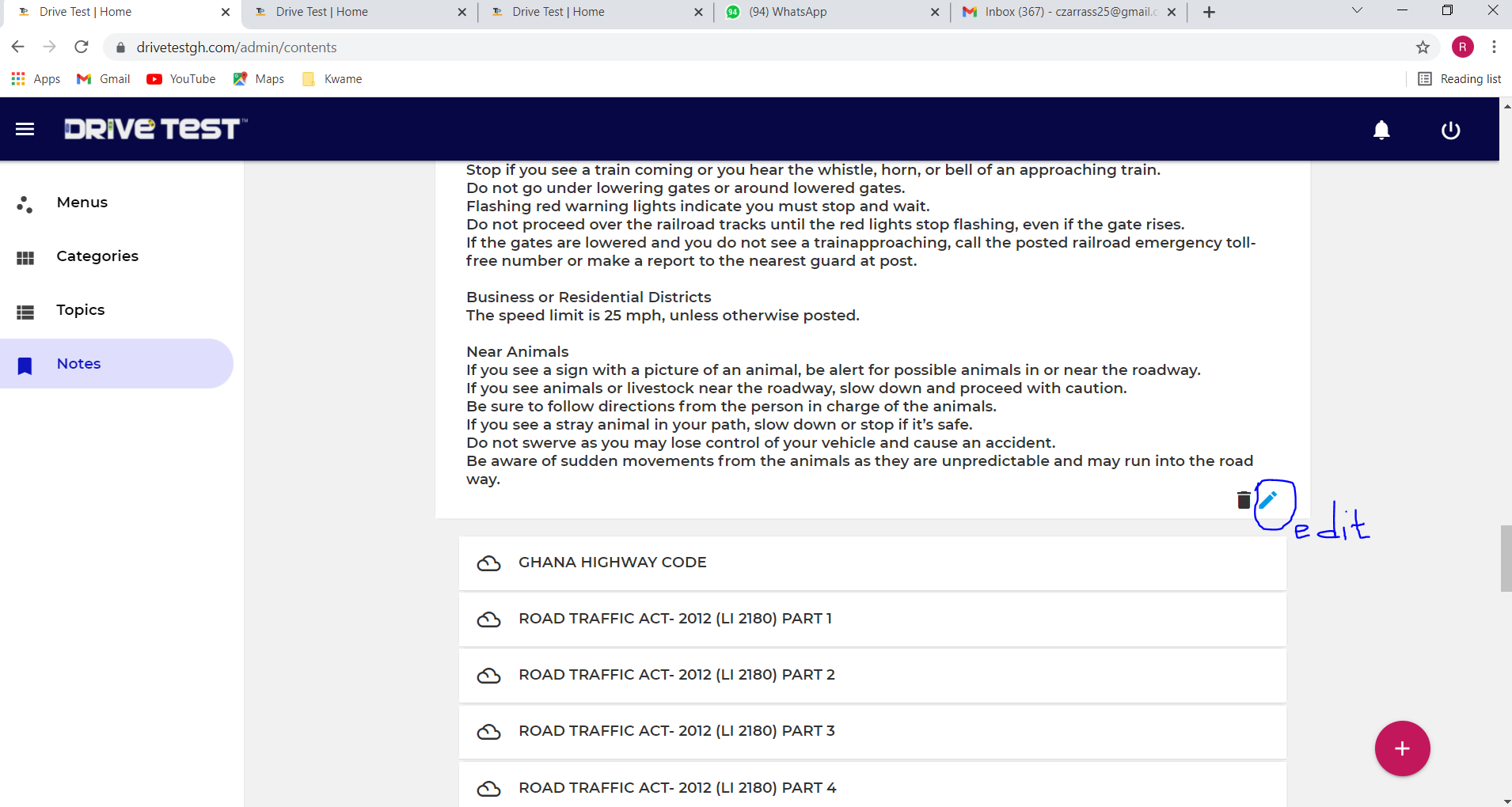
- Make the changes and click on assign content (call 0208208947 for support)
-
How to reset password as a School Administrator expand_more
- Click on Edit Profile
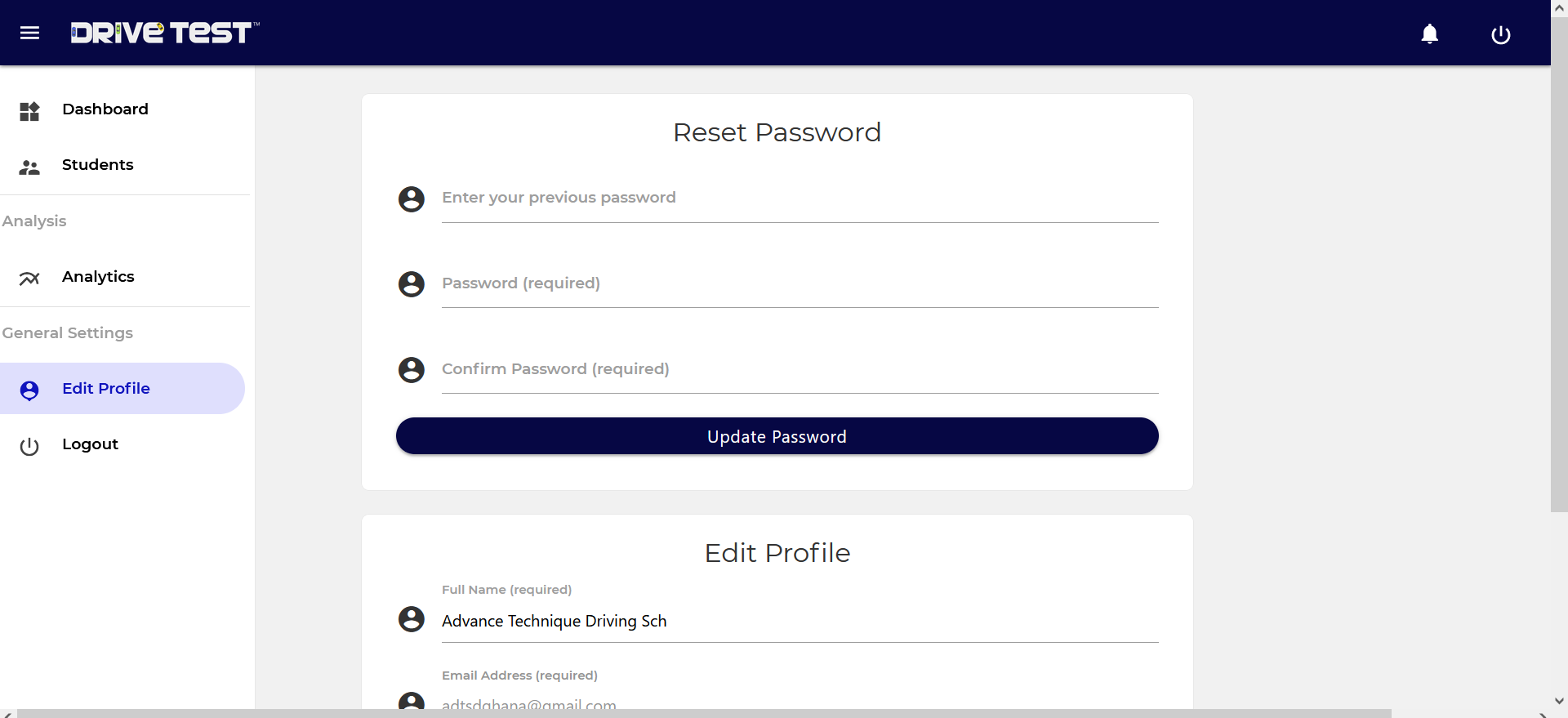
- Enter your previous/old password
- Next, Key in the new password
- Confirm your new password
- Click on update Password
-
How to Register a Student (School Administrator) expand_more
- To register students, click on the red + sign at the bottom right of the page and enter the details of the student.
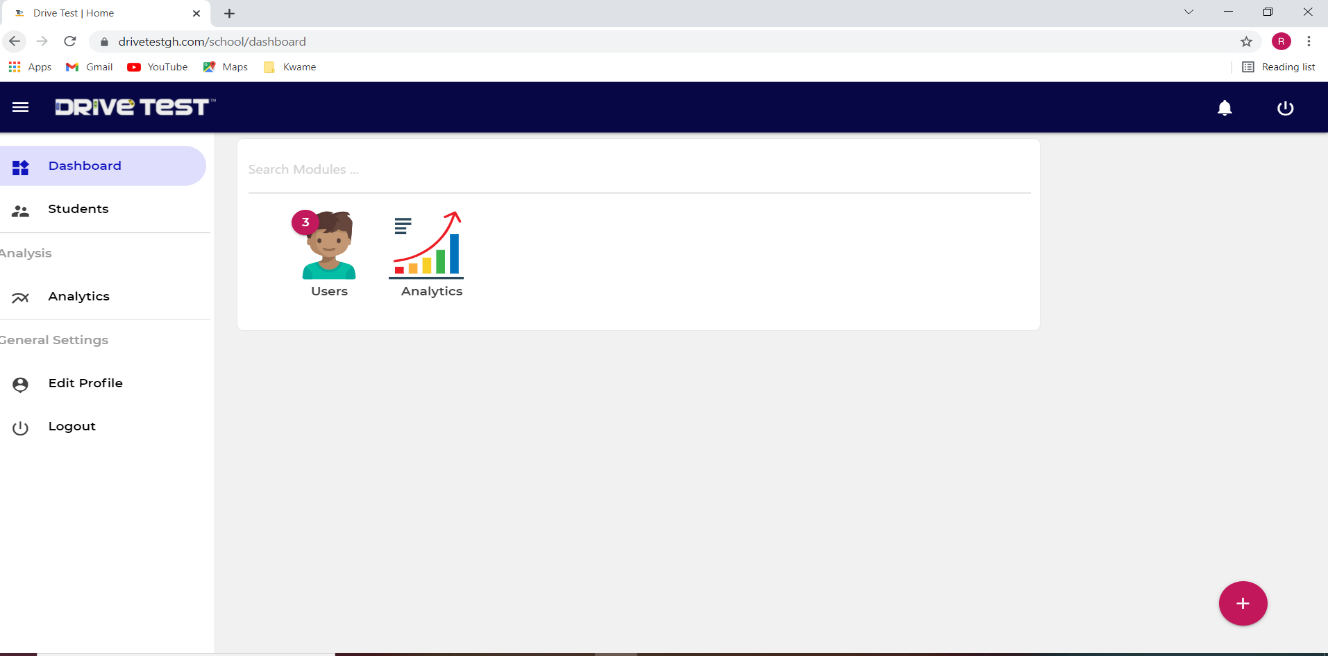
- To view the list of active registered students, click on Students at the left side menu bar
- Analytics gives analysis on the number of registered students
- Edit profile allows you to edit your profile and reset your password
- Log out: logs you out of the application
N.B the system doesn’t allow the administrator to delete a student after adding him. A student is automatically deactivated but not DELETED after 3 months. If the students wants to reuse the system he has to pay and the school will call GhanaDrive secretariat for the student to be reactivated after showing prove of payment.
-
Accessing the system as a School Administrator expand_more
Note: The Administrator can only access the system using www.drivetestgh.com/school/login on their computers
- Right Click/Double click on any of the browsers listed above
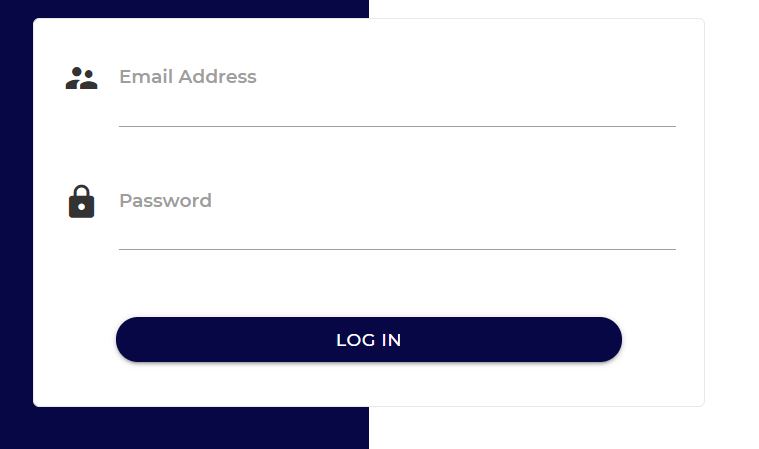
- Type the address www.drivetestgh.com/school/login
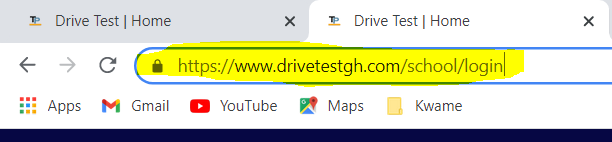
- Type the email and password provided to access the application
Note: The school administrator should not share his access with the students or any untrusted individuals
-
How to change your Login Pin as a Student expand_more
- Log in using your old credentials
- Click on settings
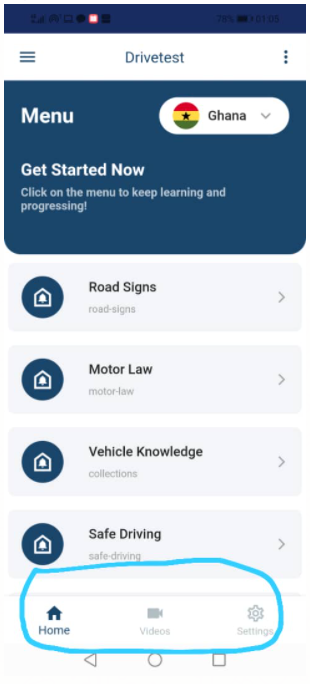
- Click on change password
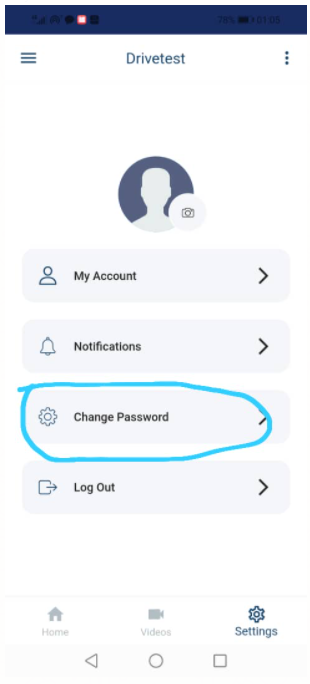
- Enter the old Pin
- Enter the new Pin and confirm
-
How to access the application as a Student using the Drivetest Mobile App expand_more
Click on the App to open
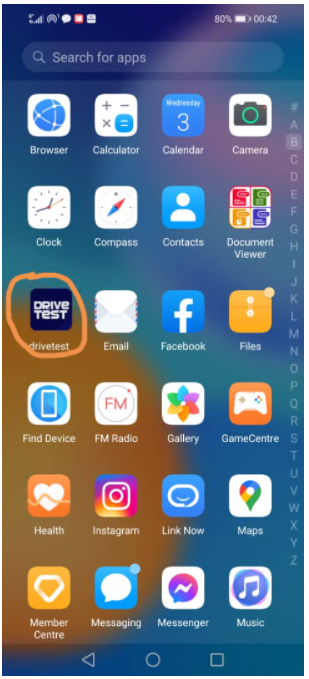
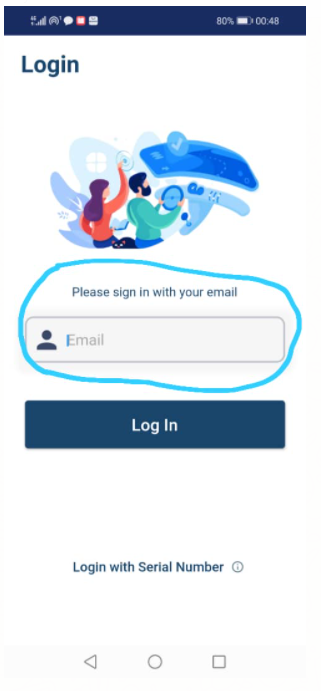
- Enter your registered email address (NB: If your email is not registered by a Driving school you won’t be allowed to the next stage which is where you set a new Pin)
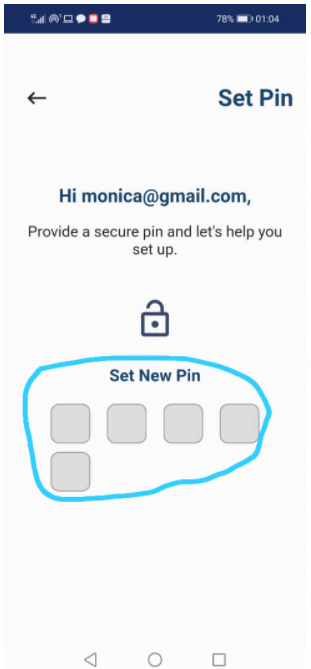
- Click on set new pin (The new Pin can both be used to log in both into the web and mobile app). Please input a pin that you can remember, it is your only access to the mobile app
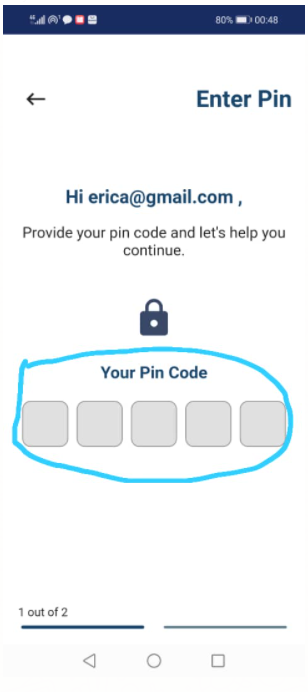
- After setting your Pin you have to re Key your Pin previously set to log in.
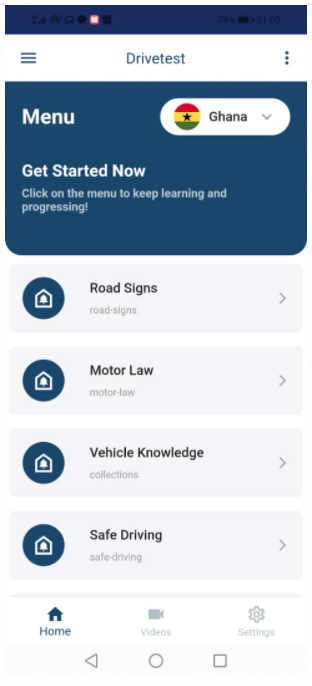
- Click on Log in to access your tutorials
-
How to download and install the App (Student) expand_more
Download and install the App from www.drivetestgh.com /playstore/ google play
NB: The App can be downloaded directly from playstore/ google play
- Right Click/Double click on any of the browsers that you have on your desktop/smart phone to open
- Type the address www.drivetestgh.com in the address bar to access the application
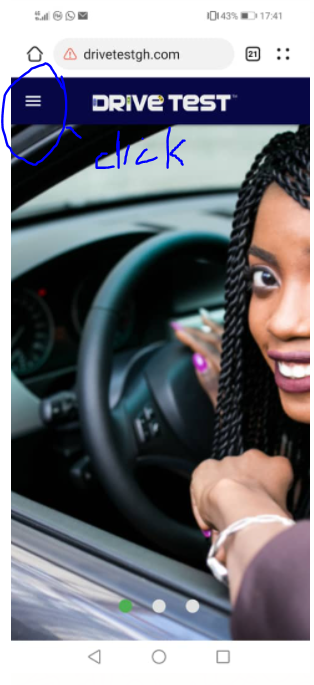
- Click on Download App to download the App from www.drivetestgh.com /playstore /google play
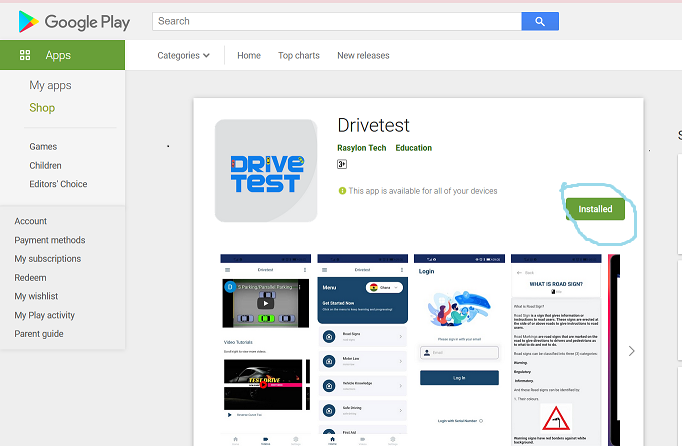
- Click on install to start the installation and follow the procedure to finish it.
-
How to access the application (DriveTest) using a browser (Student) expand_more
Below is a list of some browsers that can be used to access the application
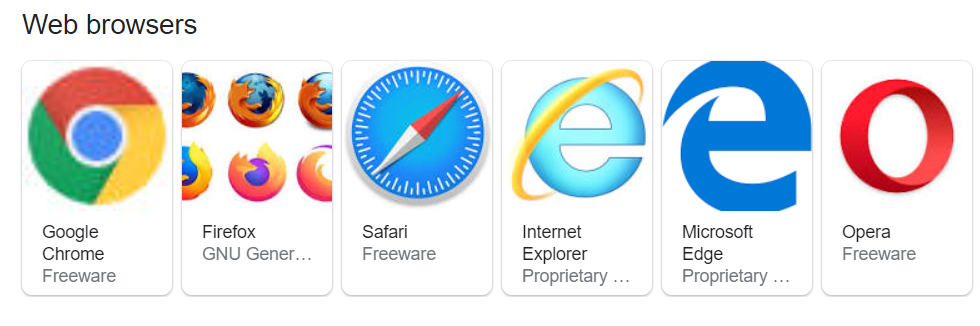
- Right Click/Double click on any of the browsers that you have on your desktop/smart phone to open
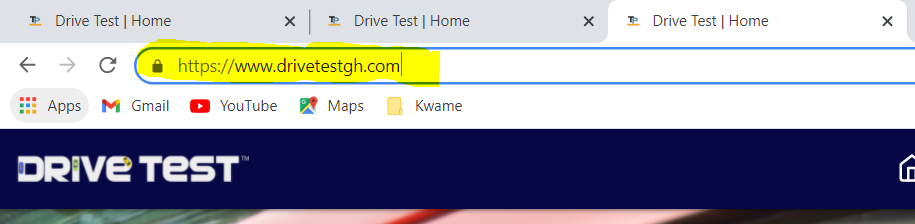
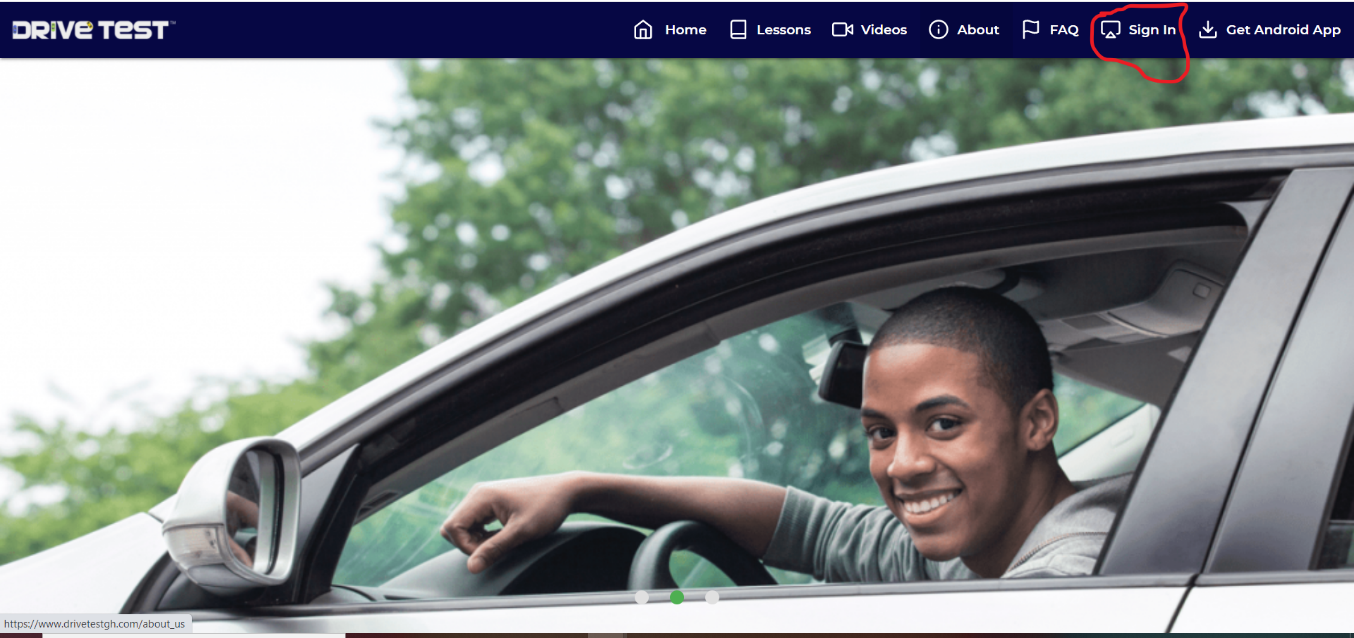
- Type the address www.drivetestgh.com in the address bar as shown below to access the application
- Click on Sign in and enter your email address and password/Pin provided by the driving school.
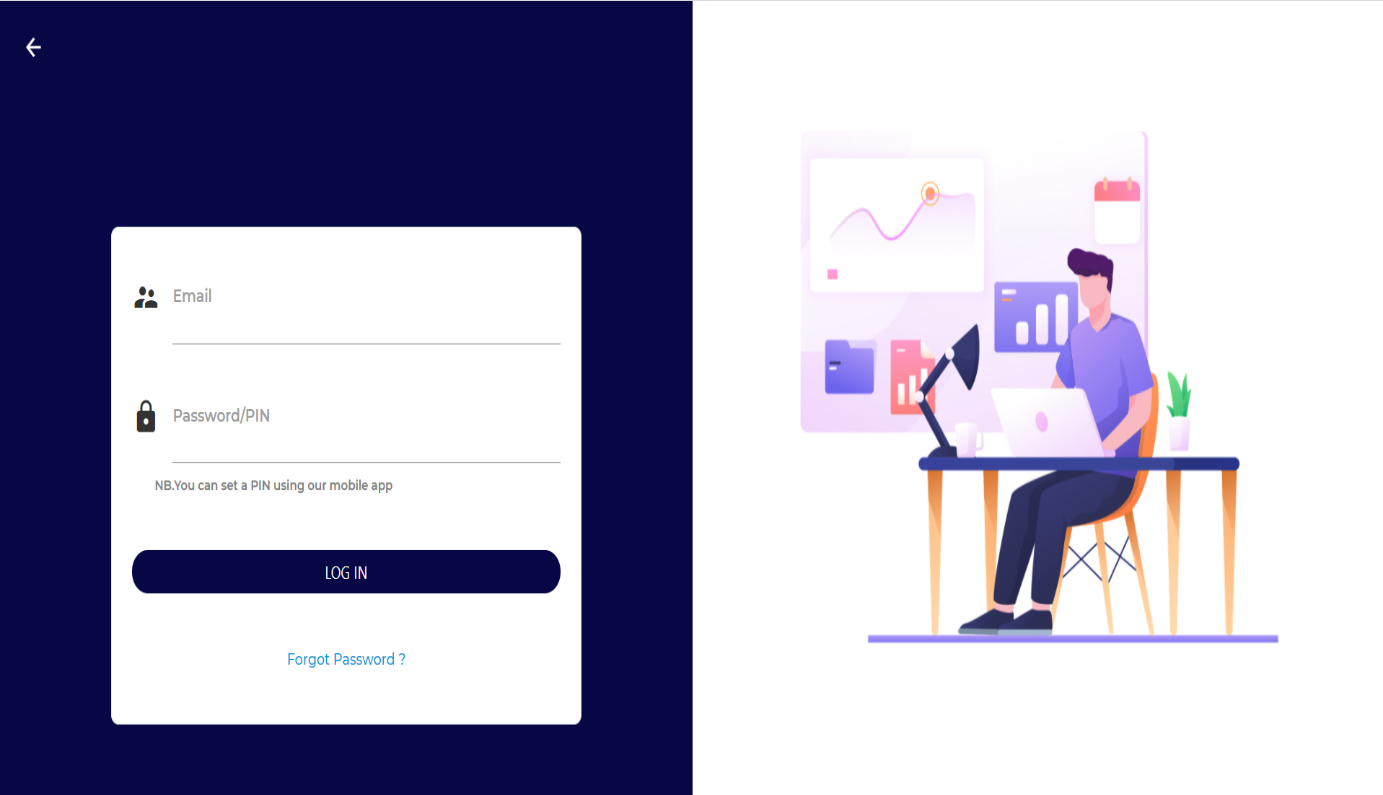
- Click on LOG IN to access the system.
Note: Pin can be used both on the web app and mobile App. The Pin can only be set on the Mobile App.
Still need help?
New students can apply through a driving school. Existing students can sign in to continue learning.